
Activity Sync with HubSpot

Learn how to bring Tarvent's email engagement and activity into HubSpot, so your sales team can see how every contact interacts with your email marketing — without leaving their CRM.
In this guide, you'll find:
- Overview
- Engagement data
- Activity history
- Setting it up
- Where your data appears in HubSpot
- Understanding your data
- Troubleshooting
- FAQs
1 Overview
Engagement & Activity Sync adds Tarvent's email insights to your HubSpot contacts. Your team can see how engaged each contact is and what they've recently done with your emails — right on the contact record in HubSpot.
What you get
- Engagement insights: An engagement score, engagement level, and lifecycle stage on each contact.
- Recent activity: Email events like opens, clicks, and replies recorded on the contact.
- Automatic updates: Engagement refreshes on its own, and new activity appears within minutes.
- Neatly organized: Everything is grouped into dedicated Tarvent sections so it's easy to find.
- Use it your way: Turn on engagement insights, activity history, or both — they're independent.
Prerequisite: You need an active HubSpot integration first. See Connect HubSpot to Tarvent for setup instructions.
2 Engagement data
Engagement data adds a set of properties to your HubSpot contacts that summarize how each person engages with your email — like an engagement score, whether they're hot or cold, and where they are in their lifecycle. Choose how much detail you want:
Don't sync
- No engagement fields
- Default setting
Minimal (Recommended)
- Basic insights
- Opens, clicks, last activity
- Engagement score & level
Detailed
- Everything in Minimal
- Campaign history
- Recent engagement metrics
Advanced
- Everything in Detailed
- Predictive insights
- Churn risk & send recommendations
Each level builds on the one before it. Engagement data refreshes automatically every few hours, and only contacts whose data has changed are updated. All of these properties are grouped under Tarvent Engagement on the contact record (see Where your data appears).
3 Activity history
Activity history records the email events your contacts generate — opens, clicks, replies, bounces, and unsubscribes — so reps can see recent interactions on the contact. Choose how much to store:
- Don't sync activity: No activity is stored. (You can still use engagement data.)
- Latest activity (Recommended): Keeps just the most recent meaningful event for each contact. This keeps HubSpot clean while still showing what a contact did last.
- Full activity history: Records every event. This gives the most detail but can create a lot of records on active contacts.
Heads up: Full activity history can add many records for active contacts. If you mainly want to see a contact's latest interaction, Latest activity is the cleaner choice.
Activity visibility
When you choose Latest activity, you also decide where it shows up for your sales reps:
- CRM notes (Recommended): Creates a readable summary on the contact's timeline — the easiest way for reps to see what a contact did at a glance.
- CRM fields: Stores the activity in structured contact fields (in the Tarvent Activity group) that you can filter and report on.
Which should I choose? CRM notes are the most readable and appear right on the timeline, but you can't filter on them. CRM fields are filterable and report-friendly, but less glanceable. Most teams start with CRM notes.
Tarvent is smart about timing: rapid bursts (like several quick clicks) are combined into a single update so your CRM doesn't get cluttered, while important events like clicks, replies, bounces, and unsubscribes show up right away.
4 Setting it up
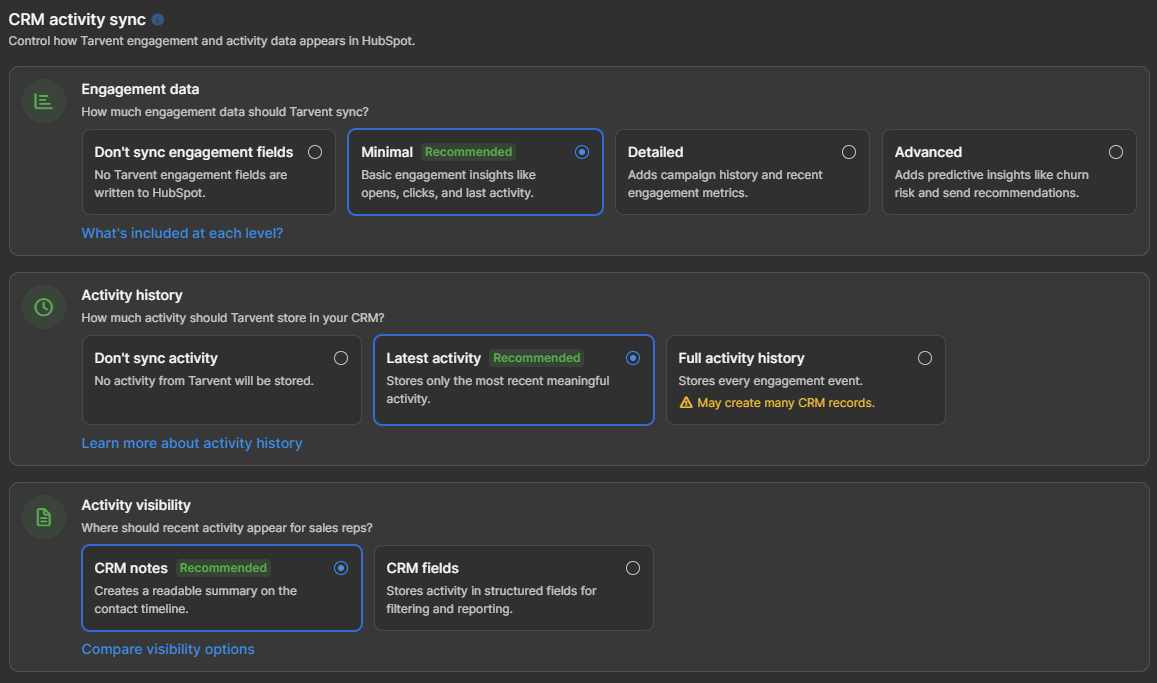
- In Tarvent, go to Account > Integrations and select your HubSpot integration.
- Open the CRM activity sync settings.
- Under Engagement data, choose how much engagement detail to sync — Minimal, Detailed, or Advanced (or Don't sync).
- Under Activity history, choose whether to store the Latest activity, the Full activity history, or nothing.
- If you chose Latest activity, set Activity visibility — CRM notes (timeline summary) or CRM fields (structured fields).
- Click Save.
Note: The first time you enable engagement or activity data, Tarvent automatically creates the needed properties in HubSpot and organizes them into Tarvent groups. Switch to a higher level later and new properties are added automatically; switch lower and the extra ones are removed. (Creating properties requires HubSpot admin access — the same account you connected with.)
5 Where your data appears in HubSpot
Tarvent keeps everything tidy and easy to find on the contact record:
- Tarvent Engagement group: All engagement properties (score, level, lifecycle, and more) are grouped together in a Tarvent Engagement property group — so they're in one place instead of scattered among your standard HubSpot properties.
- Notes on the timeline: If you set Activity visibility to CRM notes, recent email events appear as readable notes on the contact's activity timeline.
- Tarvent Activity group: If you set Activity visibility to CRM fields, the recent-activity details are stored as structured properties in a Tarvent Activity property group — ready for filtering and reporting.
Tip: Because the engagement and activity fields are real HubSpot contact properties, you can use them in HubSpot lists, workflows, and reports — for example, build a list of your "Hot" contacts or trigger a workflow when someone's engagement starts to drop.
6 Understanding your data
Engagement levels
- Hot: Highly engaged — regularly opens and clicks.
- Warm: Moderately engaged with consistent activity.
- Cold: Low engagement — may need a re-engagement campaign.
- Inactive: No recent engagement — consider list cleanup.
Lifecycle stages
- New: Recently added, limited history.
- Active: Regularly engaging.
- At Risk: Engagement is slipping.
- Dormant: No engagement for a while.
- Lost: Long-term disengagement.
- Reactivated: Previously quiet, now engaging again.
- Never Engaged: Has never engaged with an email.
Send recommendations (included with Advanced)
- Priority: High-value — prioritize for outreach.
- Standard: Normal sending is fine.
- Caution: Consider easing off the frequency.
- Do Not Send: Risk of unsubscribe or complaint — pause sending.
7 Troubleshooting
Common Issues
- Fields aren't showing in HubSpot: Give it a few minutes after enabling. If they still don't appear, make sure you connected with a HubSpot account that has admin access (needed to create properties), then turn engagement data off and on again.
- A contact isn't getting updates: The contact must be synced between Tarvent and HubSpot first. Events for contacts that aren't synced yet are held until they are.
- Engagement data looks out of date: Engagement refreshes every few hours. To update sooner, run a manual sync from the integration settings.
- Too many records in HubSpot: Switch Activity history from Full to Latest activity to keep just the most recent event per contact.
- A Tarvent property was deleted in HubSpot: Tarvent recreates its properties automatically on the next sync.