
Multivariate (A/B) campaigns
Multivariate campaigns let you test multiple variations in one send, then automatically deliver the winning combination to the rest of your audience. In Tarvent, you can test combinations of subject line (and preview text), from, and content. Or, you can test different send times.
What we’ll cover
- What multivariate testing is (and why it beats A/B testing)
- Where you can use multivariate testing
- Open multivariate testing settings
- Create variations (subject, from, content)
- Configure multivariate testing settings
- How the winner is chosen
- When the winning combination is sent
- Reporting, notifications, and campaign list indicators
1 What multivariate testing is (and why it beats A/B testing)
A classic A/B test compares one change at a time (A vs B). That works, but it’s slow when you have multiple things you want to improve.
Multivariate testing compares combinations of changes (for example: Subject 1 + From 2 + Content 2), so you can learn faster and find the best overall package for your audience.
Why multivariate testing is often better than A/B testing
- It tests interactions: A subject line that performs best with one email body might not win with a different body.
- It learns more per send: Instead of running separate A/B tests for subject, from, and content, you can test them together.
- It can reduce guesswork: You get a clear winner based on real engagement from your own audience.
Good to know: Multivariate testing needs a larger audience than a simple A/B test because contacts are split across more combinations. If each combination only gets a handful of people, the result won’t mean much.
2 Where you can use multivariate testing
Multivariate testing is supported in:
- Campaigns (in the campaign editor)
- Journeys using the action step Send Optimized email
The Journey version includes a couple additional settings that will be covered in a separate help doc.
3 Open multivariate testing settings
- Open your campaign in the campaign editor.
- Click Multivariate testing in the left navigation.
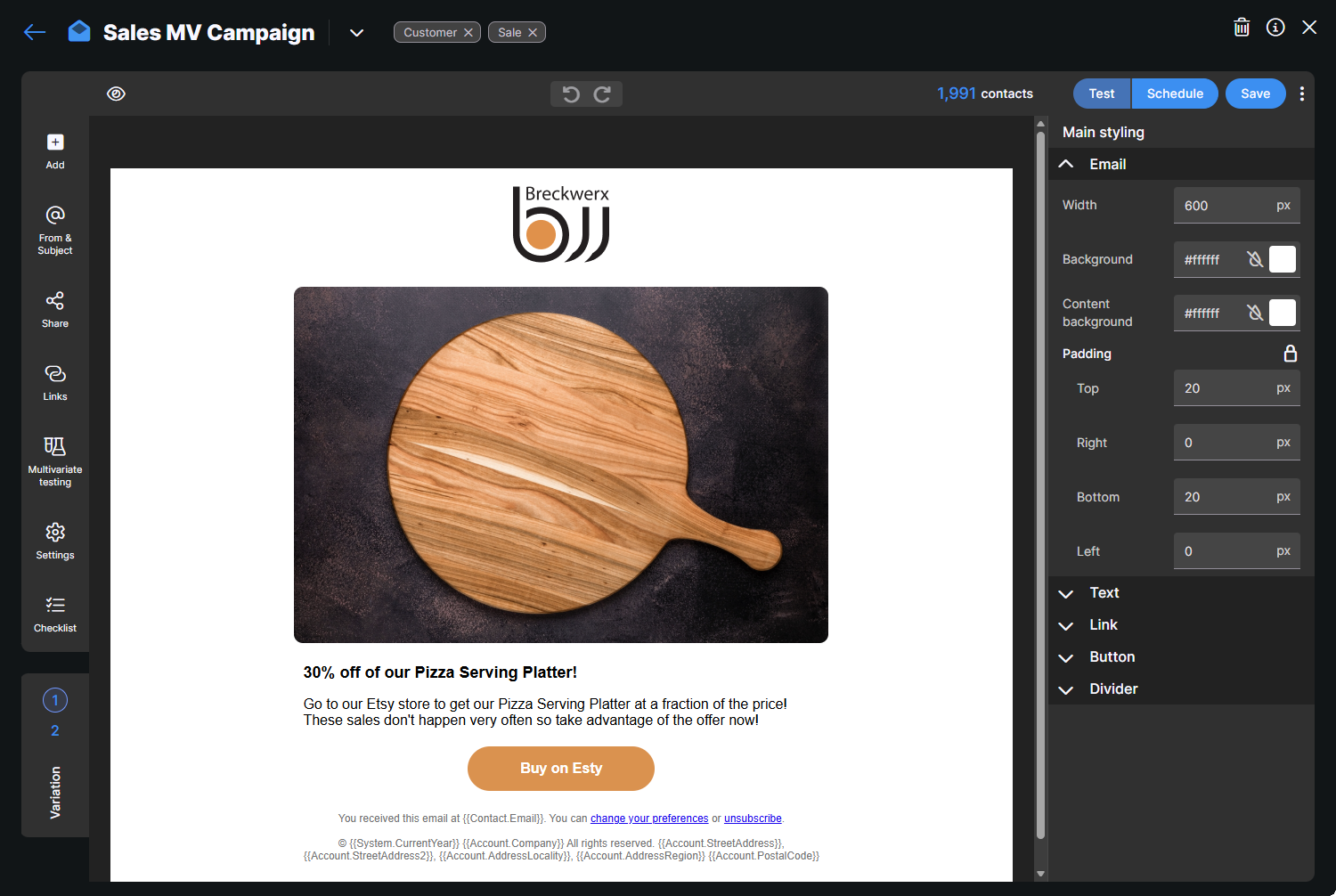
This opens the multivariate testing setup screen where you pick what you’re testing, how large the test audience is, and how the winner is chosen.
4 Create variations (subject, from, content)
Multivariate testing is built from variations. Each variation represents one option for subject, from, or content. Tarvent combines these variations into test combinations.
Subject line and preview text variations
In From & Subject, Tarvent shows the Subject variation number near the top. Select a variation number, then edit the subject line (and preview text) for that variation.
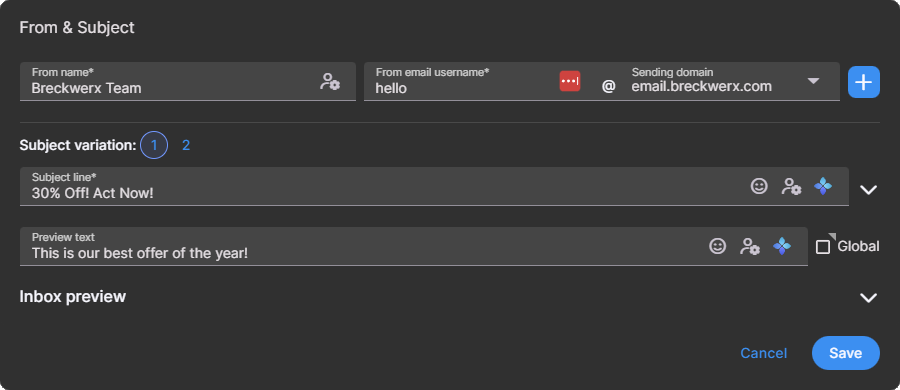
Preview text: Global vs per variation
- If Global is checked, preview text stays the same for all subject variations.
- If Global is unchecked, you can change preview text for each subject variation.
From variations
The From fields also use variation numbers, similar to subject variations. Select the variation number, then edit the from name and from email (username and domain) for that variation.
Note: From variations are separate from subject variations. For example, Subject variation 2 does not automatically match From variation 2.
Content variations
Content variations are selected inside the editor using the Variation selector on the left. Choose a variation, then change as little or as much content as you want.
Each content variation can optionally use a different template. This is useful when one variation needs a different layout, not just different text.
5 Configure multivariate testing settings
In the multivariate testing screen, you’ll configure how the test runs and how many people see it.
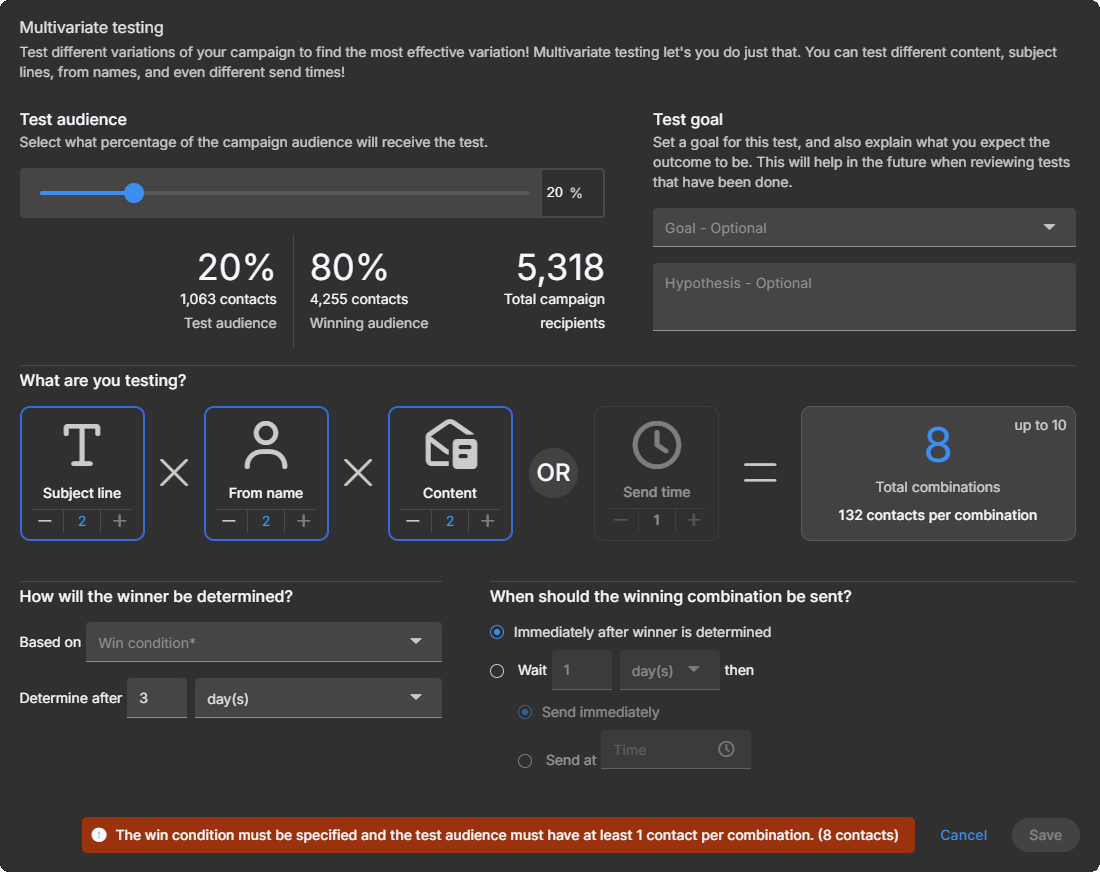
Test audience
Choose what percentage of your total recipients will receive the test combinations. The remaining recipients become the winning audience.
Tarvent calculates:
- Total combinations (based on how many variations you add)
- Contacts per combination (based on your test audience size)
Tip: Technically, you only need at least 1 contact per combination, but that won’t give a useful result. Increase your test audience so each combination gets enough contacts to compare performance.
What are you testing?
You can test combinations of:
- Subject line (and preview text)
- From name (includes email address)
- Content
Or, you can test send times.
Important rules
- You can test send times or test subject/from/content. You can’t mix both.
- Tarvent supports up to 10 total combinations.
- As you add variations, the total combinations update automatically.
Test goal (optional)
Pick a goal and write a hypothesis if you want. This is saved for reference and does not change how Tarvent runs the test.
6 How the winner is chosen
Under How will the winner be determined? choose what Tarvent should optimize for, then choose how long Tarvent should wait before deciding. Waiting gives contacts time to open, click, and engage.
Win conditions
- Click rate: based on unique contacts who clicked (not total clicks).
- Open rate: based on unique contacts who opened (downloaded images), not total opens.
- Engagement score: compares overall engagement for each combination (uses multiple engagement signals, not just opens and clicks).
- Sender reputation: optimizes for the option that best supports reputation related outcomes (useful when deliverability is the priority).
- Shared: based on unique contacts who shared the email on social media (not total shares).
- Manual: after the time you set, Tarvent asks you to pick the winner. You can review the campaign report for each combination, then choose what goes to the remaining contacts.
7 When the winning combination is sent
Choose what happens after the winner is determined:
- Immediately after winner is determined: sends right away (no specific time selection). The timing is based on the initial test send timing.
- Wait a specific period of time then send: wait hours, days, or weeks, then send the winner.
- Send immediately: sends after the wait period, around the same time of day as the initial tests.
- Send at: pick a time of day. If that time already passed today, Tarvent waits until the next day at that time.
8 Reporting, notifications, and campaign list indicators
After the campaign completes, the campaign report shows how each combination performed and which combination won.
If the campaign requires a manual winner selection, Tarvent will notify you in the app and by email when it’s time to choose. You’ll also see an indicator on the campaign list so it’s easy to spot campaigns waiting on a decision.
In the campaign list, Tarvent also shows a multivariate icon next to any campaign that has multivariate testing enabled.