
Viewing a campaign report
Tarvent’s campaign report shows how your email performed, who engaged, and what you can do next. Most percentages in the report are based on unique contacts (not total events) so you can trust the story the numbers are telling.
What we'll cover
- Open the campaign report
- Top right tools
- Overview
- Bounces
- Opens
- Clicks and sharing
- Software and devices
- Heatmap
- Feedback: reported spam, unsubscribes, replies
- Info
- Exporting report data
- Last updated and real time stats
1 Open the campaign report
The campaign report is available after a campaign has been sent.
- Click Campaigns from the primary navigation.
- Find a campaign with a status of Sent or Stopped.
- Click the campaign to open the report.
Note: You can also access this report from the primary navigation item named Reports.
2 Top right tools
- Refresh: Reload the latest stats for the report.
- Compare: Compare multiple campaigns to see performance side by side.
- Print: Print the report (including print to PDF).
- Export: Export report data to a delimited file (details below).
- Full screen: Toggle full screen viewing of the report.
- Close: Close the report.
3 Overview
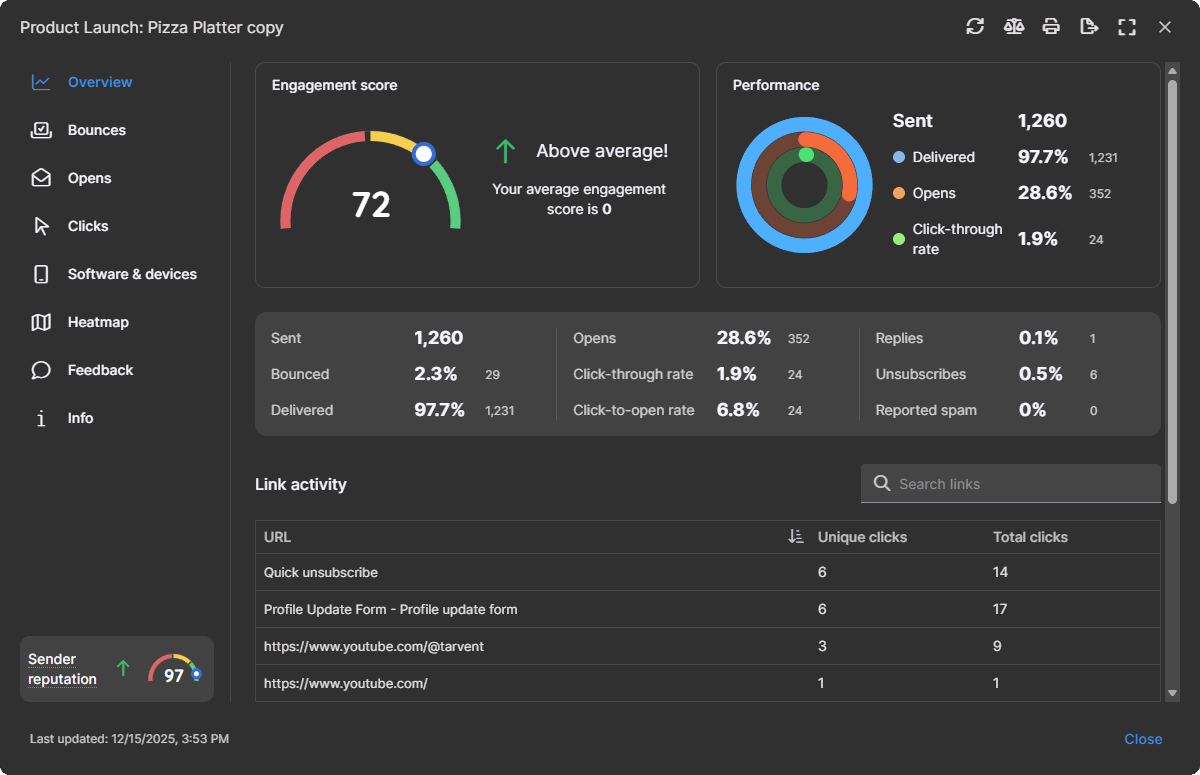
The Overview gives you a quick read on how the campaign did and why.
Tarvent exclusive: Engagement score and Sender reputation are unique to Tarvent. They give you two simple numbers that answer: How did this campaign perform? and How healthy is my sending? This is especially helpful if you are newer to email marketing and want a clear signal before diving into the deeper stats.
- Engagement score: A single score (0 to 100) that reflects overall campaign success using multiple engagement signals. Tarvent also shows whether the score is trending above or below your account average.
- Sender reputation: A score that reflects how mailbox providers may view your sending quality. It is influenced by signals like bounces, spam reports, and unsubscribes. If this drops, inbox placement can suffer.
- Sent: The number of unique contacts the campaign was sent to.
- Delivered: Messages accepted by the recipient’s mail server (this does not guarantee inbox placement).
- Opens: The percentage (and count) of unique contacts that opened. Opens can only be detected when images are downloaded.
- Click through rate: The percentage (and count) of unique contacts that clicked a trackable link, even if an open is not detected. Tarvent does not automatically count a click as an open, so you can see true open behavior.
- Bounced: The percentage (and count) of unique contacts that bounced (hard and soft combined).
- Click to open rate: The percentage (and count) of unique contacts that opened and clicked.
- Replies: The percentage (and count) of unique contacts that replied (valid replies only). Reply tracking requires reply processing to be enabled in campaign settings.
- Unsubscribes: The percentage (and count) of unique contacts that unsubscribed, including quick unsubscribes and supported email client unsubscribes.
- Reported spam: The percentage (and count) of unique contacts that reported the email as spam. Even a small overall percentage can hide higher per domain spam rates.
- Link activity: A list of tracked links in the campaign. This table shows both unique clicks and total clicks per link. Example: 6 unique contacts clicked a link 14 times.
4 Bounces
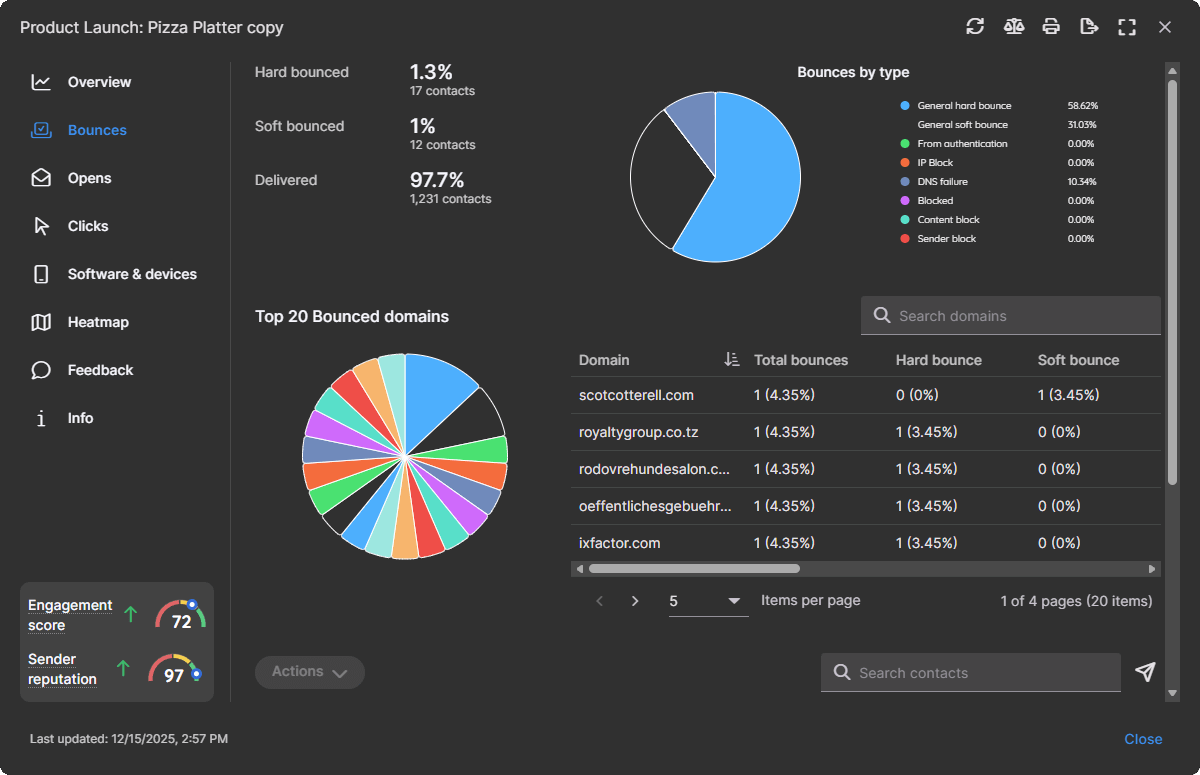
The Bounces section helps you spot delivery issues and understand what type of bounce you are seeing.
- Hard bounced: Permanent failures (example: mailbox does not exist). Many accounts are configured to automatically clean contacts after hard bounces. Cleaning behavior can vary by account settings.
- Soft bounced: Temporary failures (example: mailbox full). Some accounts automatically clean contacts after repeated soft bounces across multiple campaigns. If a future campaign delivers successfully, soft bounce counts may reset.
- Bounces by type: Adds clarity by grouping common reasons (examples include general soft bounce, DNS failure, content block, sender block, IP block, and email authentication issues related to SPF, DKIM, or DMARC).
- Top bounced domains: Shows which domains are returning the most bounces so you can monitor trends and spot domain specific issues.
5 Opens
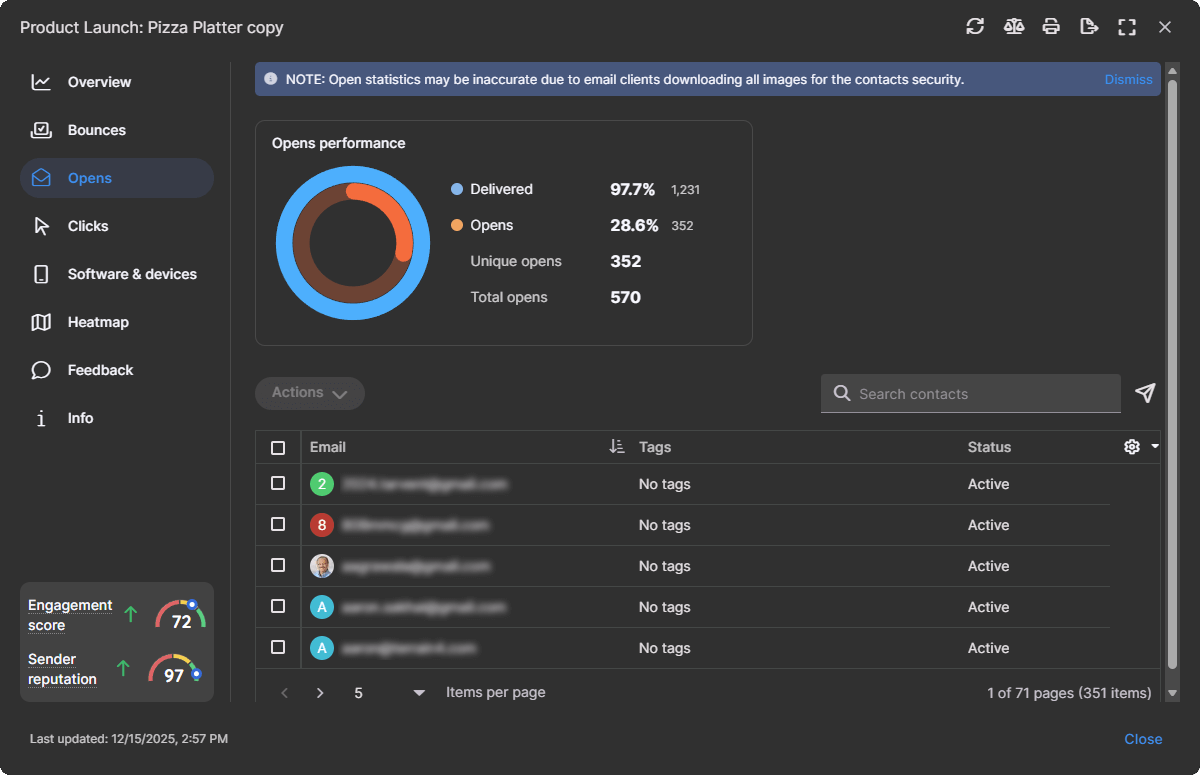
Opens shows open performance for delivered messages and a list of contacts who opened. You can search, adjust visible columns, and use the Actions menu to take next steps with this group.
Note: Some email clients may prefetch or block images, which can make open tracking less precise.
6 Clicks and sharing
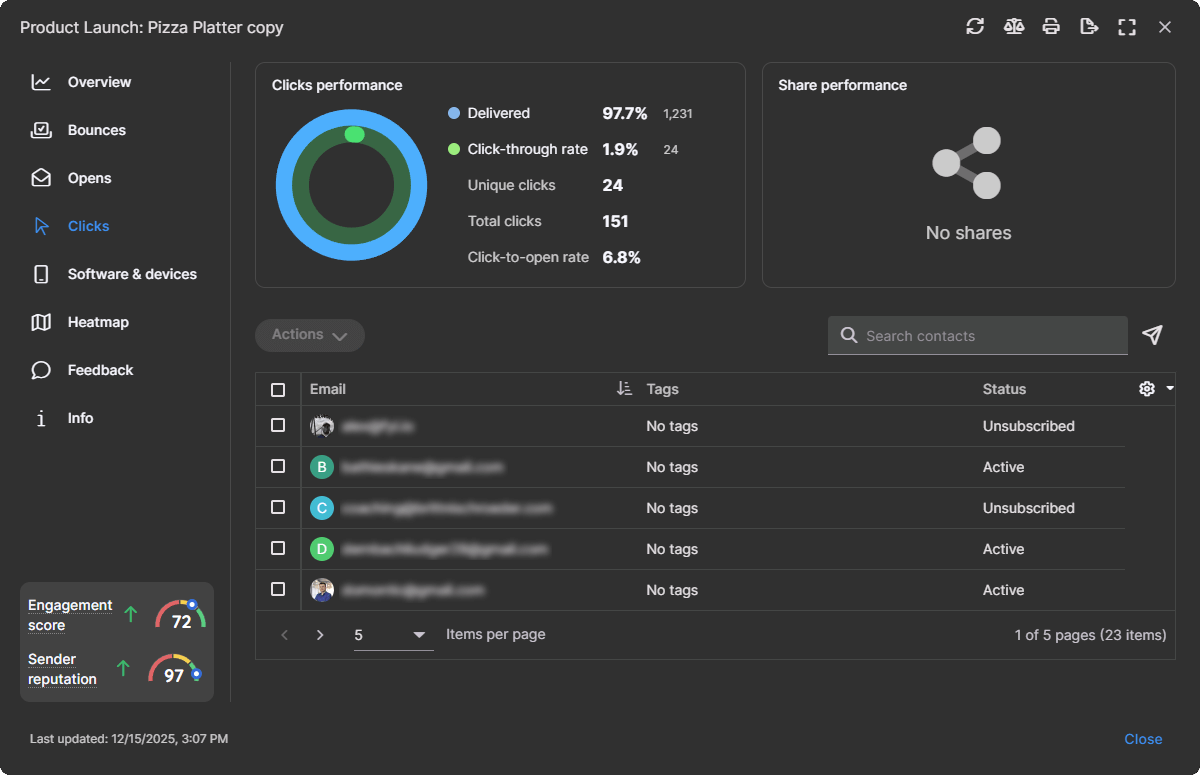
Clicks shows click performance for delivered messages and lists the contacts who clicked. If your campaign was shared, you will also see sharing performance by network.
- Unique clicks: The number of unique contacts that clicked.
- Total clicks: The total number of clicks across all contacts.
- Share performance: If sharing is enabled and used, this section helps you spot which social channels are driving attention.
7 Software and devices
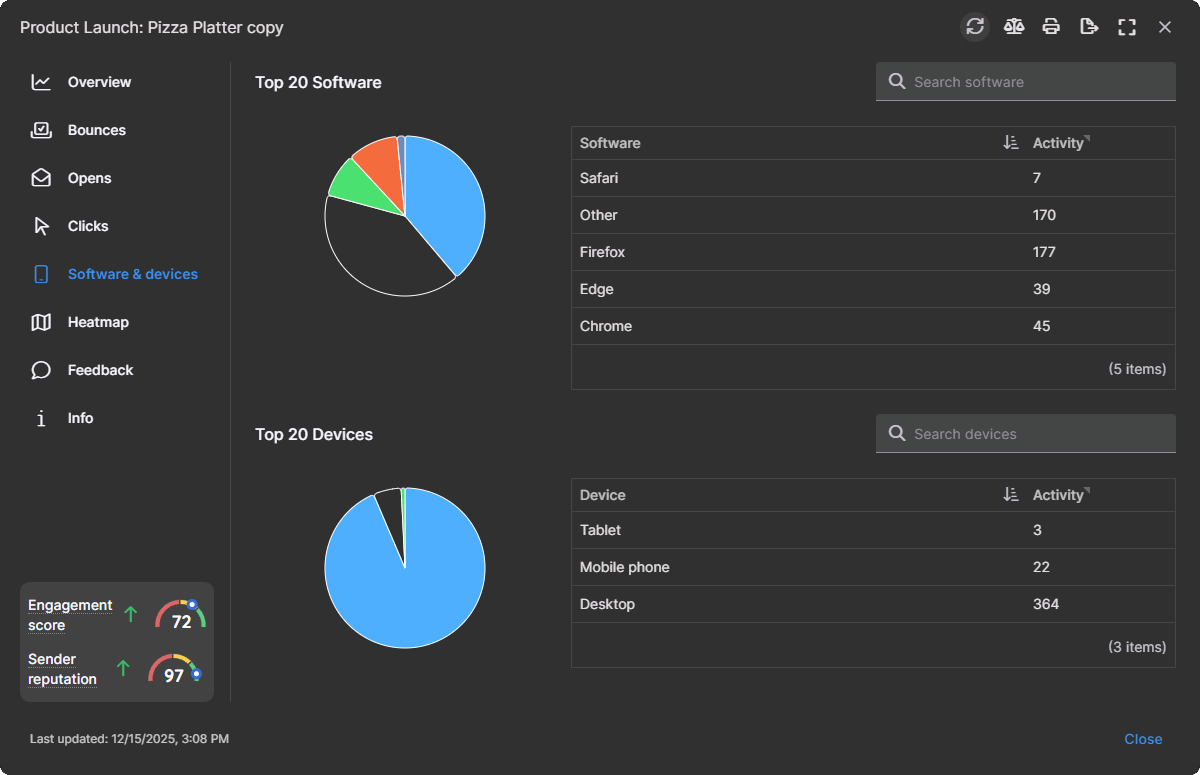
This section shows the email clients and device types used to view your campaign. This is especially helpful when you use custom HTML and want to prioritize what you test before a production send.
8 Heatmap
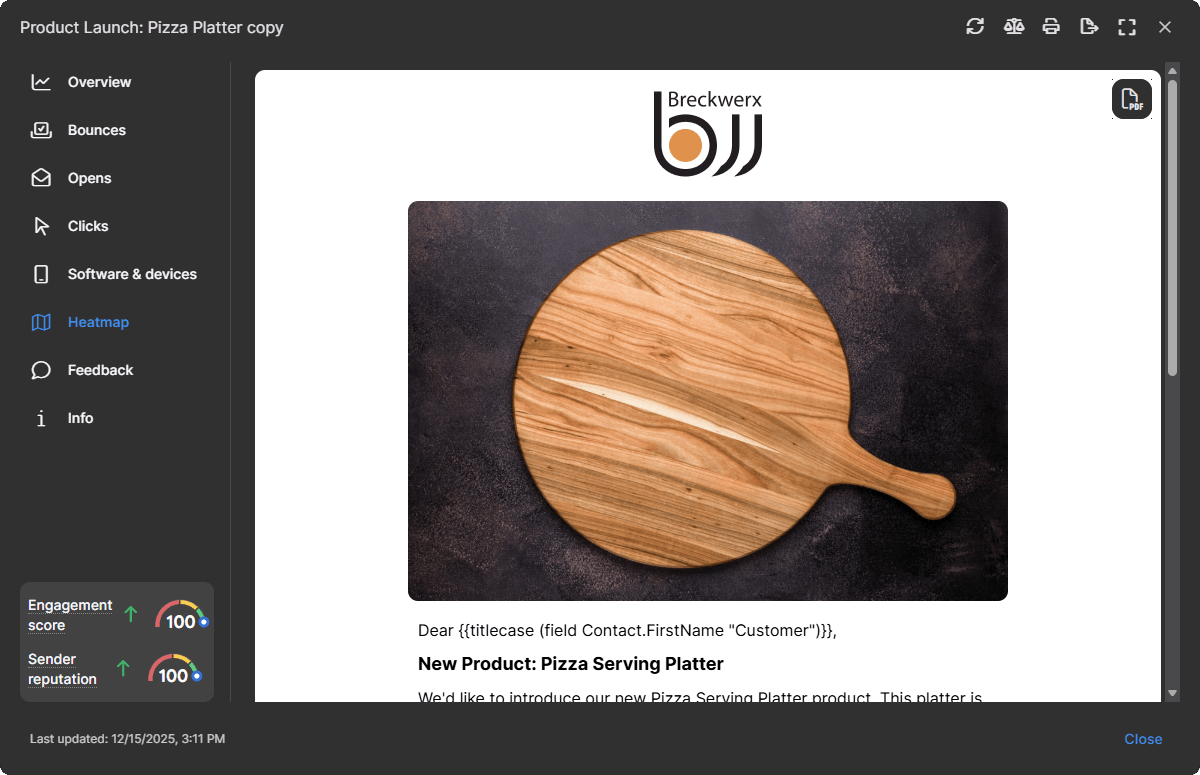
The heatmap overlays link popularity on top of your email so you can see where clicks concentrate. This can help you improve CTA placement.
- If the same URL appears multiple times in an email, those placements will share the same heatmap stats. To track placements separately, make each URL unique with a harmless query string. Example: https://example.com/pricing?src=cta_top and https://example.com/pricing?src=cta_footer
- Click the PDF icon to export a heatmap report that includes the overlay and a link table with stats, which is great for sharing.
9 Feedback: reported spam, unsubscribes, replies

Feedback is split into three tabs. Each tab lists the contacts tied to that action so you can follow up or spot issues quickly.
- Reported spam: Contacts who reported the email as spam. This often happens when emailing contacts who have not heard from you in a while, or when emailing without permission.
- Unsubscribes: Contacts who opted out of emails for this audience.
- Replies: Contacts who replied with valid responses. If reply tracking is enabled for the campaign, Tarvent filters out invalid replies like out of office messages. You can use the send icon to create a follow up campaign targeting only contacts who replied.
10 Info
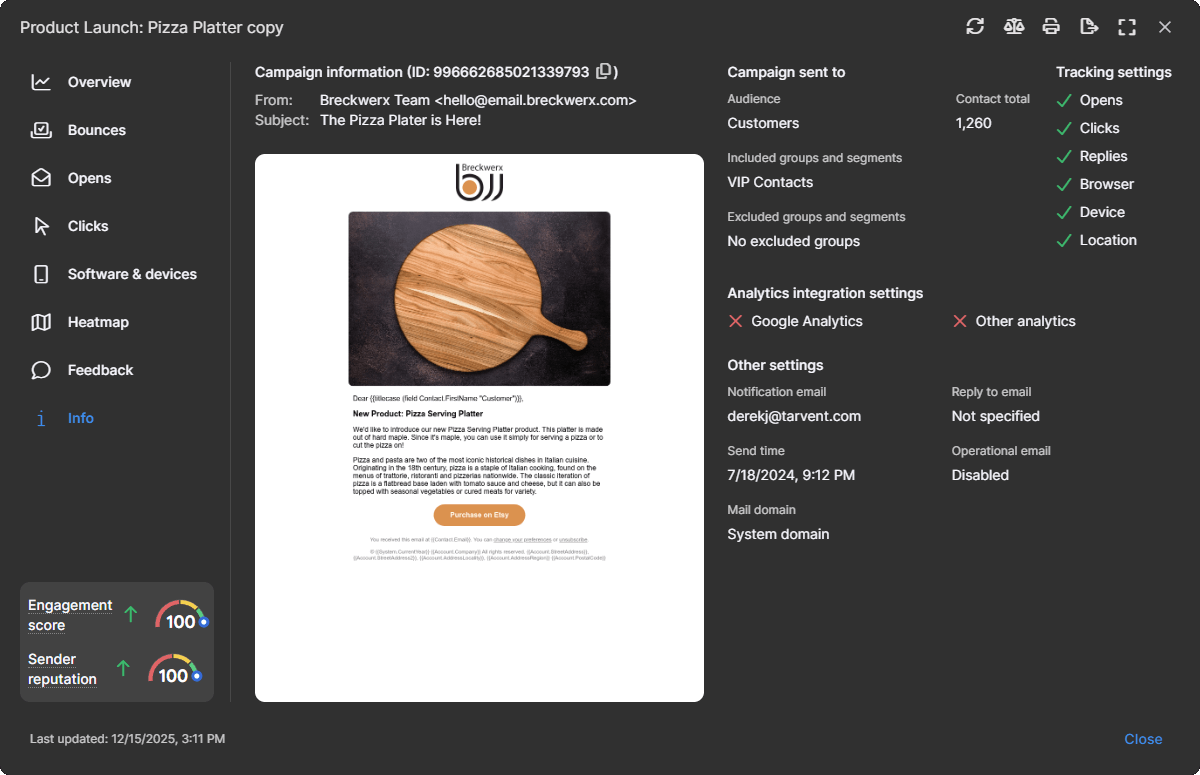
Info summarizes the settings used when the campaign was sent, including from and subject, a campaign thumbnail, audience targeting, contact count, tracking settings, analytics integration settings, reply settings, send time, and mail domain details.
11 Exporting report data
Use Export to download report data for deeper analysis or sharing.
- Choose your delimiter: CSV, tab, semicolon, or pipe.
- Select which contact fields to include (standard and custom).
- Select which behaviors to include (opens, clicks, bounces, replies, and more).
- Exports are prepared in the background. Tarvent notifies you by email and in app once the export is ready.
12 Last updated and real time stats
The Last updated timestamp shows when the report stats were last retrieved. Stats are real time, and refreshing the report updates this time.