
Sending a campaign
Learn how to choose who receives a campaign. You can target contacts using smart filters, groups and segments, a custom segment, or your entire audience. You can also exclude specific groups and segments.
What we’ll cover
- Open campaign recipients
- Option 1: Smart filters
- Option 2: Groups and segments
- Option 3: Custom segment
- Option 4: Entire audience
- Exclude groups and segments
- Recalculate and apply changes
1 Open campaign recipients
To select recipients for a campaign:
- Click Campaigns from the primary navigation on the left.
- Find the campaign you’d like to edit.
- Click the campaign to open the campaign editor.
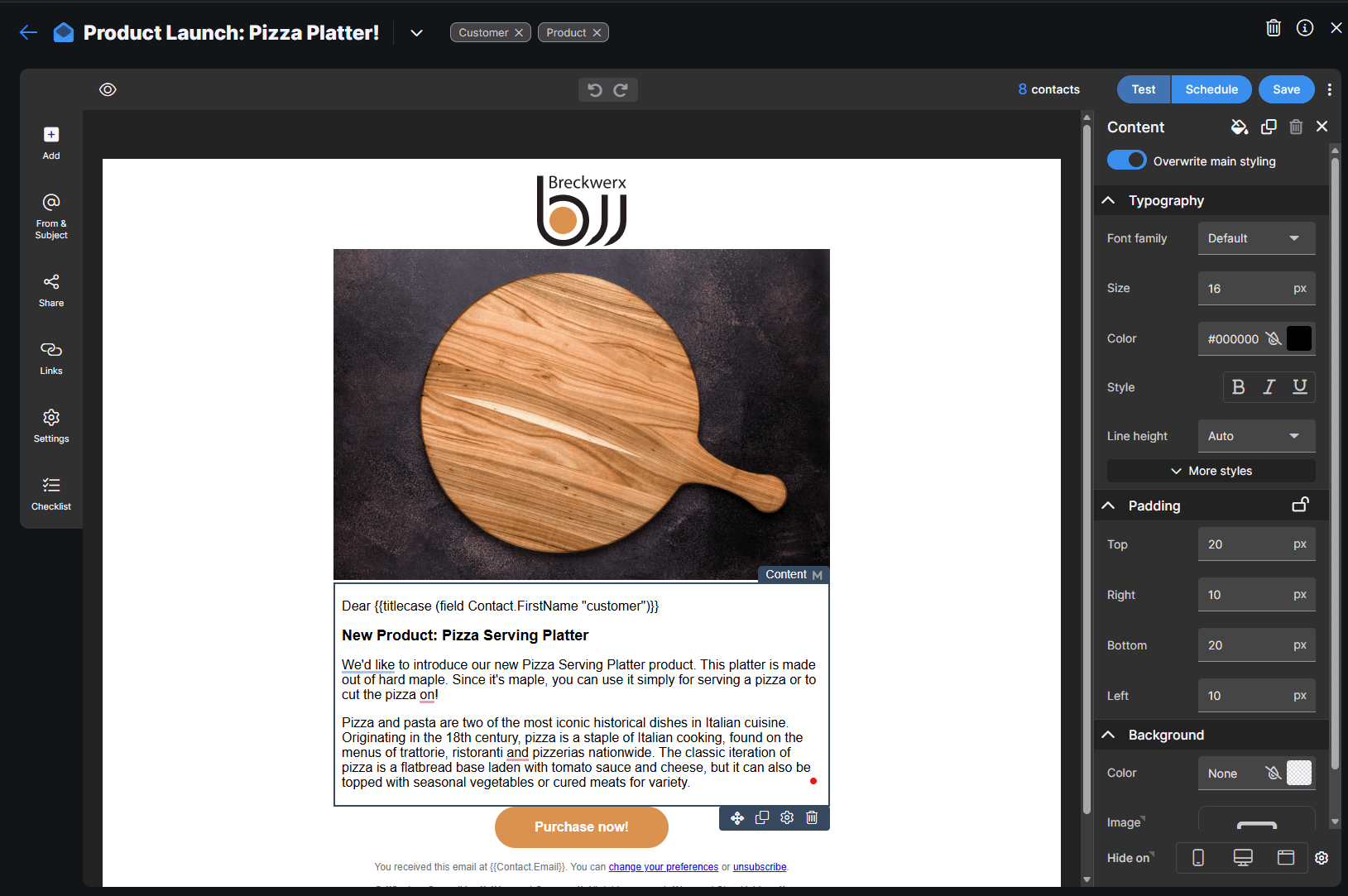
- Click the number of contacts at the top right of the campaign content area.
2 Option 1: Smart filters
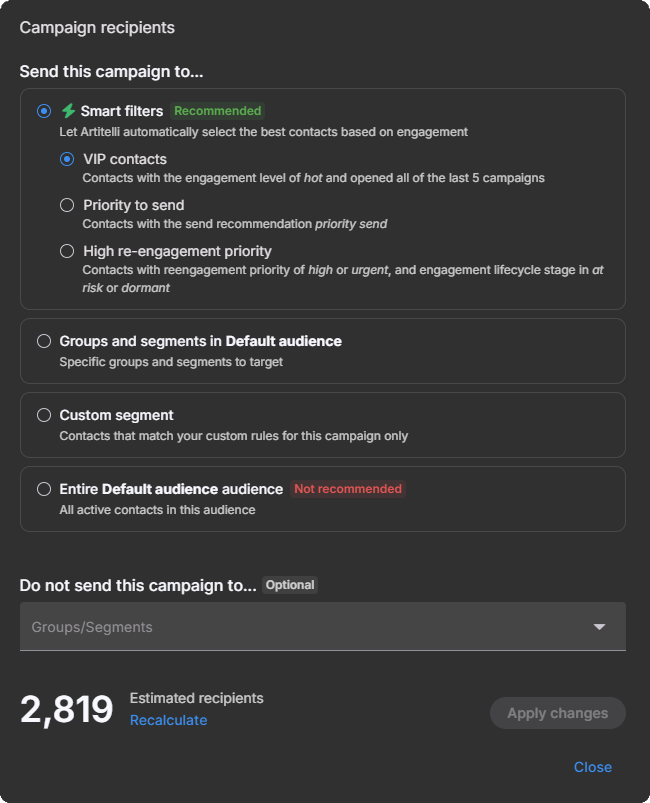
Smart filters are recommended when you want Tarvent to pick contacts based on engagement. To learn what each smart filter means and when to use it, see: Smart Filters.
You can choose from:
- VIP contacts: Contacts with an engagement level of Hot who have opened all of the last 5 campaigns.
- Priority to send: Contacts with a send recommendation of Priority send. These are contacts that are more likely to engage with your campaign.
- High re engagement priority: Contacts with re engagement priority of High or Urgent, and an engagement lifecycle stage of At risk or Dormant. These contacts need a strong reason to re-engage soon.
3 Option 2: Groups and segments
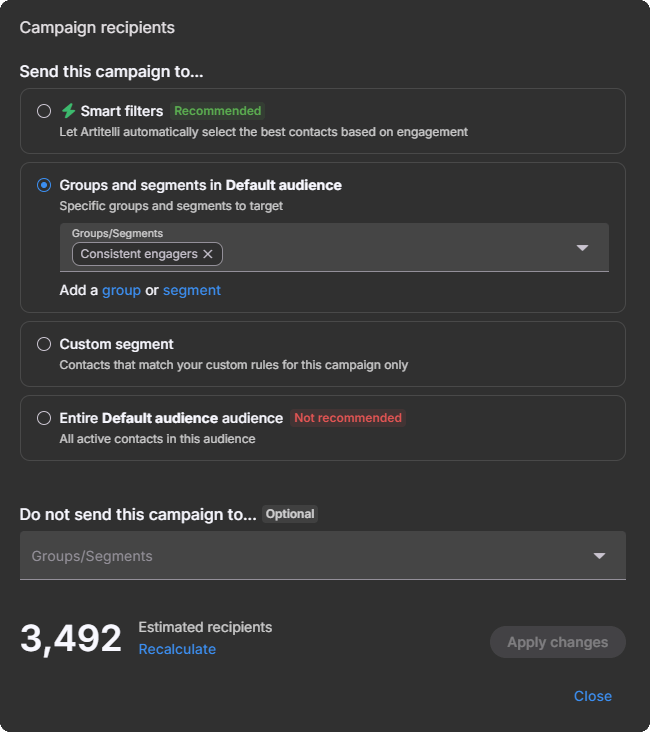
Choose Groups and segments when you want to target specific saved groups or segments in your audience. For best results, your segments should include engagement-based rules so you target contacts based on engagement (or lack of engagement).
4 Option 3: Custom segment
Choose Custom segment to build campaign-only rules without creating a saved segment in your audience. For best results, include engagement-based rules so your targeting matches how contacts are interacting with your emails.

5 Option 4: Entire audience
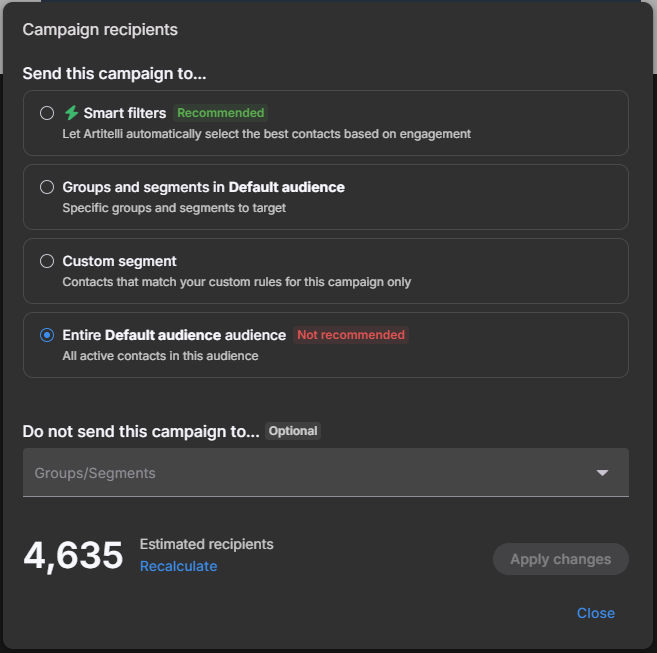
Entire audience is not recommended because there is no targeting. However, if you are sending an operational email, this can be a valid option.
For operational email guidance, see: Updating a campaign.
6 Exclude groups and segments
Optionally, you can exclude groups and segments so they do not receive the campaign. Use this when you want broad targeting, but still need to avoid specific sets of contacts.
7 Recalculate and apply changes
Recipient counts can change while you edit a campaign (for example, contacts move in or out of segments, or contact status changes). Click Recalculate at any time to refresh the estimated recipients count.
When you are happy with your selection, click Apply changes to save your recipient settings.