
Campaign Editor
Learn how to use Tarvent’s campaign editor to build emails using rows, columns, and elements.
What we'll cover
- Overview
- Layout: rows, columns, and elements
- Adding and editing rows
- Adding and editing elements
- Element types
- Editor options, auto-save, and recovery
1 Overview
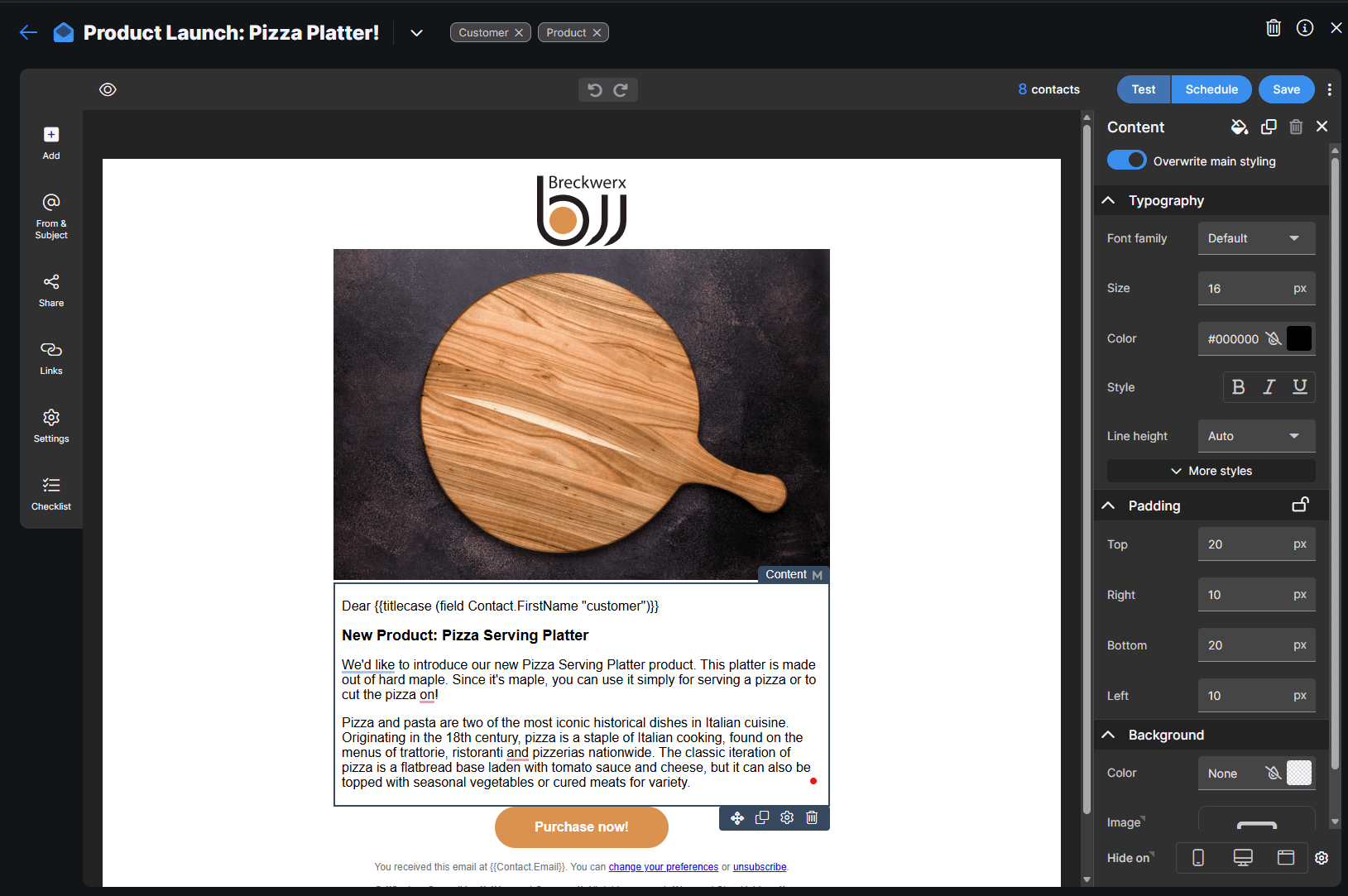
The campaign editor is where you design the content of your email. Each campaign is made up of rows, columns, and elements:
- Rows control the horizontal sections of your email.
- Columns divide a row into one or more vertical areas.
- Elements (text, images, buttons, and more) live inside columns.
You can add, move, duplicate, and delete rows and elements at any time, giving you full control over your layout while keeping everything mobile-friendly.
2 Layout: rows, columns, and elements
Tarvent uses a simple hierarchy:
- Every row must contain at least one column.
- Each column can contain one or more elements.
- Elements are stacked vertically inside a column in the order you place them.
Pro tip: Think of rows as sections (hero, body, footer), columns as layout splits (one-column vs. two-column), and elements as the actual content (text, image, button).
3 Adding and editing rows
To add a new row:
- Click Add in the left toolbar.
- Select the Rows tab at the top of the panel.
- Choose a row configuration (for example, one column, two equal columns, or a mixed layout).
The selected configuration is only a starting point. After inserting a row, you can adjust:
- The number of columns.
- Column widths and spacing.
- Row padding, background color or image, and other visual properties.
Use the settings panel on the right side of the editor to modify row and column properties.
4 Adding and editing elements
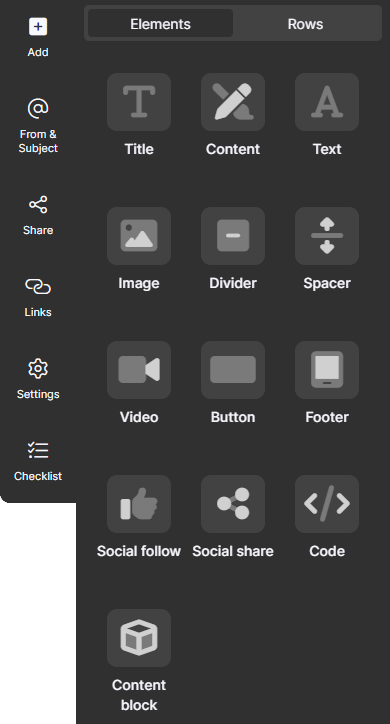
To add an element to a column:
- Click Add in the left toolbar.
- Make sure the Elements tab is selected.
- Drag the element type you want into the campaign and drop it where you want it placed.
As you drag, a blue bar shows where the element will be inserted. After adding an element, you can always move, duplicate, or delete it using the controls that appear when you hover over the element.
5 Element types
The editor includes several element types designed for different use cases.
Title
A focused text-only element intended for headings and titles.
- Supports text only (no images inside the element).
- Limited styling options to keep titles consistent across campaigns.
- Useful when multiple people build campaigns and you want a consistent branded look.
Content
The most flexible element type, ideal for general content blocks.
- Supports text, images, video thumbnails, buttons, and more in a single block.
- Best choice for most body content in your campaign.
Text
A rich text-only element with more styling options than the Title element.
- Supports text only, but with expanded typography settings.
- Good for paragraphs, intros, and detailed descriptions.
Image
A dedicated image element with layout and link options tailored for images.
- Add a single image with precise alignment and spacing controls.
- Link the image to a web page, form, landing page, survey, and more.
- Includes styling options not available in the Content element.
- Tarvent automatically optimizes large images to render correctly across email clients, so you don’t have to size them perfectly in advance.
Divider
Adds a horizontal line to visually separate sections in your email.
- Control thickness, width, color, alignment, and more.
Spacer
Adds empty space between elements or sections without a visible line.
- Use when you want breathing room between blocks but no visual divider.
Video
Lets you promote a video using a clickable thumbnail.
- Supports links to YouTube, Vimeo, or your own hosted video.
- When pasting a YouTube URL, Tarvent automatically pulls the thumbnail.
- The email renders a linked image rather than an embedded video, since most email clients do not support video playback for security reasons.
Button
A call-to-action (CTA) element that makes it easy to add clickable buttons.
- No need to design button images externally.
- Customize text, colors, shape, alignment, and link target.
Footer
A pre-built footer block designed to help your emails stay compliant.
- Includes address information pulled from your audience settings.
- Automatically inserts unsubscribe links and other required details for CAN-SPAM compliance.
Social follow
Adds social icons that let recipients follow your brand’s profiles.
- Choose from multiple icon styles to match your branding.
- Link each icon to your social accounts (for example, Facebook, Instagram, LinkedIn).
Social share
Encourages recipients to share your campaign on their own social feeds.
- Uses a similar visual style to Social follow icons.
- You control which social networks are available for sharing.
- Use the Share settings in the editor to define the message, title, and image that appear when your campaign is shared.
Code
A powerful option for advanced users who need full control of the HTML.
- Insert custom HTML for highly specialized layouts or integrations.
- Be cautious: invalid or conflicting HTML can break the layout of the campaign.
Content block
Embeds reusable content stored in your account’s library.
- Ideal for standard headers, footers, or promotional banners used across multiple emails.
- Content blocks are linked: if you update the block later, the latest version will be used when the campaign is sent.
6 Editor options, auto-save, and recovery
The campaign editor includes several quality-of-life features to help protect your work and streamline your workflow.
- Auto-save: You can enable auto-save so changes are saved frequently while you design your campaign.
- Local recovery: The editor continually stores your work locally in the background. If your browser crashes or your internet connection drops while you are editing, Tarvent can detect unsaved changes the next time you open the campaign and prompt you to recover them.
This recovery system helps prevent data loss caused by unexpected browser issues or network problems, so you can focus on creating great campaigns instead of worrying about saving every change.