
Adding personalization
Personalization lets you insert data from your account, contacts, campaigns, and more, so each email can feel more relevant to the recipient. Anywhere you see the  personalization icon, you can insert personalized data.
What we'll cover
- Where you can use personalization
- How to insert personalization
- Data location options
- Field and default value
- Formatting functions
- Language
- About Tarvent’s template language
- Tips and troubleshooting
1 Where you can use personalization
In campaigns, personalization can be used in many places, including:
- Campaign content: Insert personalized fields directly in the email body.
- Subject line: Add contact data to make subject lines more relevant.
- Preview text: Add personalized details that appear next to the subject in many inboxes.
- From name and from email: Personalize sender details when the icon is available.
- Other campaign settings: Anywhere the personalization icon appears, personalization is supported.
2 How to insert personalization
- Place your cursor where you want the personalized data to appear.
- Click the
 personalization icon.
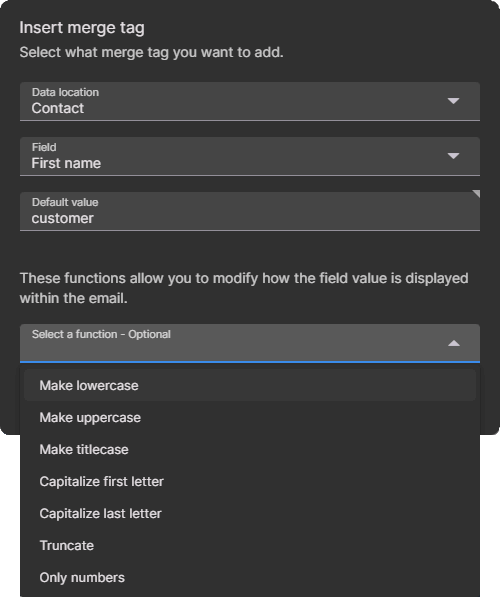
 - Choose the Data location and Field you want to insert.
- (Optional) Set a Default value, choose Functions, or configure Language.
- Click Add to insert the personalization into your campaign.
3 Data location options
Data location controls which type of data you are inserting:
- Account: Your account information, such as company name, address, and other account level details.
- Contact: The recipient’s profile data from your audience, including standard fields and custom fields.
- Campaign: Information about the campaign you are editing.
- Journey: Information about the journey you are editing, or the journey associated with the campaign. This may not be available if the campaign is not associated with a journey.
- Survey: Survey related data, such as survey name, submit date, and more. This is only available while editing surveys (including survey emails, notifications, and confirmation pages).
- Miscellaneous: System generated values, such as calculated dates and other utility fields.
4 Field and default value
Field changes based on the selected data location. For example, if you choose Contact, the field list includes standard fields (like First name and Email) and any custom fields in your audience.
Default value lets you control what is shown when the selected field is missing. If the field has a default value configured in the audience field settings, that default will be used. If you want to override it (or if no default is set), you can specify a default value in the personalization dialog.
Example: If First name is missing, set the default to there so your email can say "Hi Jason" or "Hi there".
5 Formatting functions
Functions format your inserted data. Available functions depend on the data type (text, number, date, and more). These options help you keep a consistent look even when the data is stored inconsistently.
For example, using a text function like Titlecase, a value like "company inc" can be displayed as "Company Inc". Tarvent includes over 40 formatting functions across different data types.
6 Language
Language is an advanced option that lets you format a specific value using a different language than the campaign itself. The campaign language helps determine formatting rules (for example, date formats, currency rules, number formatting, and right to left vs left to right text behavior).
This is useful when you are sending emails in multiple languages but want certain values formatted using a specific locale. For example, you could format currency using US rules even if the campaign content is written in another language.
7 About Tarvent’s template language
You never need to learn Tarvent’s template language to use personalization. The personalization dialog builds the syntax for you. If you want to learn more about how the template language works, see: Introduction to Tarvent’s template language.
8 Tips and troubleshooting
- If you need to change formatting after insertion, you can delete the inserted personalization and insert it again with new settings.
- If your personalization looks blank in a test, confirm the contact you are using has values populated for the selected fields (or set a default value).
- Use formatting functions to keep names, dates, and other values consistent across your emails.